Showing posts with label iPhone. Show all posts

8.16.2011

You Won't Believe What Your Mobile Phone Can Do Now!


Have you seen these funny looking squares that resemble a computer chip and wondered what the heck? You've probably noticed them on printed materials you're receiving in the mail. They're showing up everywhere! Or, you might have even noticed them on a few business cards. Keep reading to see how to begin using those funny looking squares today.

First, let me explain how and why these codes are used. They are called QR Codes (Quick Response) and they are able to be read with an app in mobile phones such as iPhone, Android and Blackberry. These unique scanner apps read the QR Code and instantly displays any type of information from the vendor's website, a shopping cart page, or contact details.

You can even generate your own QR Code to add to your marketing materials. We're in the process of adding QR Codes to our business cards, brochures, flyers . . . well you get the picture. You can generate a different QR Code that is specific to each marketing piece. For instance, your brochure QR Code might take a person directly to the homepage of your website. A QR Code on a flyer might take your client to a specific page on your website. A QR Code on your business card could give them your contact details. In this world of technology, it's all about giving our clients the information they want RIGHT NOW!

Below is example of a QR Code online generator that can create a QR Code for your business card by using the Create a meCard option. If you want to create a QR Code to direct someone to your website you would simply click on the drop down menu and select Bookmark a website. There are several QR Code generators available on the web. We selected Qrafter, anyone can visit this website and generate QR Codes for free, however, their current mobile phone app is only for iOS devices which are the iPhone and iPad. I also like Mobiletag and their app is for Andriod, Blackerry and iPhone users. Download an app for your phone today; be prepared to take interesting journeys with your phone.


You can upgrade to the Pro Pack ($2.99) and create QR Codes right from your iPhone.

6.06.2011

17 Personal Apps for the iPad


Last week, I gave you a list of the my top 13 business apps I use on my iPad. This week I'll share my top 17 personal apps. I have hyperlinked each app to the iTunes App Store. Make sure you keep all of your apps up-to-date. It's amazing how many enhancements the developers add at no cost. If you can't find an app, wait a month or two and search again. New iPad apps are developed and launched everyday. Why use an app instead of visiting a website? iPad apps are specifically designed and formatted to fit the screen size of the iPad and the features and functions are tappable. Is that a word? It is now!

Special Note: There are several apps that are not native iPads apps. The iPad version may still be in development. However, you can still use an app designed for the iPhone by simply clicking on the x2 button in the bottom right corner to enlarge the screen when you open the app. Using the x2 button can make the text appear blurry. :(

My favorite personal apps:
  1. Holy Bible (Free) This app is truly amazing. I use it all the time. You can read scriptures in multiple versions, make notes or bookmark specific text and even perform a search. This app is available for multiple devices. You have the ability to download and store multiple versions on your iPad which eliminates the need for an internet connection.
  2. Allrecipes Pro ($4.99) They have a free version, however, it doesn't sync with the desktop version. You pay a yearly membership fee for enhanced membership. This is one of my favorite sites/apps. I use my iPad to prepare my favorite recipes. No more cookbooks. I enter all my favorite recipes in my account. My chef name is MinutesMatter. Who knew?
  3. My FitnessPal (Free) This app is native to the iPhone, but of course it works just as well on the iPad. This app makes you aware of the food that you eat and tracks your physical activity. 20,411 people have given this app a 5 star rating!
  4. Weber's On the Grill ($4.99) Love to grill? You'll love this app and it is beautifully illustrated.
  5. Yelp Hear what the locals are saying about businesses near you.
  6. Trip Advisor (Free) Love this one. . . looking for something to eat, place to stay or something to do? You can either enter a location or use your current location to locate just about anything. They even have forums for almost anywhere you are planning to go.
  7. aSleep HD (.99 cents) If you like use a sound machine when you sleep this is a must have app when you travel.
  8. DIRECTV (Free) Whether you subscribe to DIRECTV, Dish or Comcast be sure to add their app to your collection. You can quickly set up a recording (if you have subscribe to that service) check out what is going to be playing on your favorite channels. Searching via the iPad app is much faster than viewing the guide on your television.
  9. PhonePower (Free) We use a VOIP for our personal phone service. One thing I love about VOIP phone service is that you can listen to your voicemails anytime and from any place. You can listen to your voicemails form your computer, iPhone or iPad. Complete incoming and outgoing call logs are available. Technology is amazing.
  10. Cake Doodle (.99 cents) Sand Slides (Free Limited time) Talking Tom Cat 2 (Free Note: free version has a button to purchase items for the dog; don't fall for it) Great games for your children or grandchildren.
  11. Redbox (Free) This app is native to the iPhone, but of course it works just as well on the iPad. Rent and reserve movies for only $1.
  12. TWC Max (Free) Check out the weather conditions in any city.
  13. WebMD (Free) Sick and no doctor in sight? Check out this app.
  14. Merriam Webster Dictionary (Free) This is another must have app. Wow is all I can say about this app. I can't believe it is free. Touch the mic inside the app and speak any word you want to look up. The app will also recite the word for you so you can learn to pronounce it correctly. Love that!
  15. FoxNews, CBSNews, ABCNews, NBCNews (Free) Get a quick snapshot of what's happening in the world today.
  16. Wikipanion Plus ($4.99) or Wikipanion (Free) Want to know more about something? Wikipedia is the place to look.
  17. Appstream (Free) Displays the hottest apps in the IOS universe. You can set a filter to only displays free apps and control the animation speed.

5.28.2011

13 Business Apps for the iPad

ezine: ipad

Here are my top 13 business apps for the iPad. I have hyperlinked each app to the iTunes App Store. Make sure you keep all of your apps up-to-date. It's amazing how many enhancements the developers add at no cost. If you can't find an app, wait a month or two and search again. New iPad apps are developed and launched everyday. Why use an app instead of visiting a website? iPad apps are specifically designed and formatted to fit the screen size of the iPad and the features and functions are tappable. Is that a word? It is now!

Special Note: There are several apps that not native iPad apps. The iPad version may still be in development. However, you can still use an app designed for the iPhone by simply clicking on the x2 button in the bottom right corner to enlarge the screen when you open the app. Using the x2 button can make the text appear blurry. :(

My favorite business apps:
  • iBooks (Free) This is a must have app. You can read books or pdfs with this app. TIP: Save pdf files to iBooks by dragging them into your iTunes account under Books.
  • Evernote (Free) This is a great app to store all types of miscellaneous information i.e. Images, articles, screenshots from websites. Register for the desktop version and it syncs your files with the iPad app.
  • Photogene,($2.99) Photopal, ($2.99) ColorSplash ($1.99) These are all great photo editing apps. I have all three and use Photogene and Photopal for general photo editing. ColorSplash is a unique photo enhancer that allows you to highlight color on selected objects in a photo.
  • SaiSuke ($9.99) Synchronize your Google Calendar with this app. The format is very eye pleasing and super easy to use.
  • Bank of America (Free) If you're a BOA customer you'll love this app, if not search the iTunes App Store for your bank's app. You'll love having quick access to your banking information in iPad format.
  • Xfinity (Free) We are a Comcast Business customer, they provide our high-speed internet and phone service. I love the fact that I can check voice mails from my iPad. I know you may or may not be a Comcast customer; search the iTunes App Store for your phone and internet provider.
  • Xmarks* (Free) This app enables you to access your FireFox Bookmark Toolbar from your iPad. If I want to visit one of my saved Bookmarks that I saved on my desktop, I open the Xmarks app and voila there are all the Bookmarks I have saved on my desktop and laptop computers. I have saved over 60 websites on my Bookmark Toolbar. (Love this app)
  • LastPass* (Free) This app is a great tool to store login info and passwords. You must subscribe to Premium account. $12 per year for LastPass Premium and $20 per year for both Xmarks & LastPass Premium. Worth every penny!
  • Linkedin (Free) Connect with other business owners. Every listing you and your business have on the web gets you ranked higher in search engines.
  • Friendly Plus (.99 cents) Great and easy to use app for all of us that use Facebook.
  • Dropbox (Free) This app allows you to access all your synced Dropbox files on your iPad. (LOVE this app)
  • QuickOffice Connect Mobile Suite ($14.99) This app allows you to open your Microsoft Office documents. I access all of my Microsoft Office Documents from my Dropbox folders. My favorite part is that it allows me to view my PowerPoint presentations.
  • RDP iTap Mobile ($11.99) This is a Remote Desktop App which enables all Studio Online subscribers to use all of the features and functions in Studio.

*Look for an upcoming post with more detailed information on why and how you want to use Xmarks and LastPass in your business.

This is part 2 of our series of articles on iPads.

Watch the short video below to see the amazing iPad in action.


An iPad is like having three devices in one; it's an iPod, an electronic book reading device and a computer all in one very sleek package.

2.16.2010

Gmail and Google's Buzz

Click on image to enlarge

Google just introduced Buzz, its newest development in the world of social media. Last year, I registered for a Google account and signed up for a Gmail email account. I never realized that having a Google account would include so many fabulous features! For instance, connected to my Gmail account is my Google calendar, Google Documents, Reader, and more. Gmail even allows me to send from my other email addresses, notice in the screen shot that I am sending the email from my debbie@minutesmatter.com address. I also installed WiseStamp, which is an add-on in Firefox that allows me to add a personalized signature stamp and include all my social media icons. Google Docs includes online documents, spreadsheets, and presentations. You can even upload an Excel spreadsheet or a PDF document. We are still exploring the endless possibilities that these online tools can provide for our company. Currently, my design firm is using an online spreadsheet to enter data for a large design project. Because one of our designers is not always in the office, we realized that it would be beneficial if she could do research from her computer and still have access to current data regarding the project. When files and documents are online, you can access them from any computer. Of course, I installed the Gmail App on my iPhone so that I can access the information from my phone as well. We can also designate specific folders that we would like to share with clients. I will be sharing a lot more information regarding sharing documents online in the upcoming months. Look for my posts about the benefits of Working in the Clouds or Cloud Computing.

But now, let's get back to Buzz. Buzz operates similarly to Facebook and Twitter. The best part is that it's embedded right into Gmail; you don't have to launch another application. Imagine how easy it would be to click on Buzz to post an idea or ask a question, while you're reading email. Buzz was launched last week and the response has been tremendous.

If you already have a Gmail account you're ready to start Buzzing.

1.23.2010

Talk Texting ~ is that possible?


I have found a new iPhone app that is a must have for all you iPhone users. Its Dragon Dictation by Nuance. This company is well known all over the world for its voice recognition software Dragon Naturally Speaking. I have to confess, Jerry and I are not the fastest texters, so this app is perfect for us. It kills me if something is taking too long and texting seems to be a bit inefficient for me. :( This app, however, puts me back in the game. (Now, I might be the fastest texter/talker in the South!) You can even use this app to Tweet and update your Facebook status. Best of all it is FREE! There are some rumors that there may be a fee in the future. So be sure to install this app right away.

It's amazing, and is almost 100% accurate even with our Southern accents. However, people's names seem to be a bit of a problem. Another similar app is AudioPeople for Facebook. It only works within Facebook, I use it to record a "Happy Birthday" wish to all my Facebook friends.

The screenshot above is the homepage of my iPhone, which displays my favorite and most frequently used apps. Check them all out! I have my iPhone organized with my favorite apps on my homepage; Minutes Matter you know. If you have any questions, please post in the comment section of the blog.

7.09.2009

iPhone ~ It's amazing!

Jerry and I went to the Apple store last weekend and purchased an iPhone for both of us. Jerry got a black one and I got a white one. I love that we can distinguish between the two phones. Why did we both get the same phone? My thought was that with two people learning the same phone the learning curve would be much less. I had researched this phone for over a year, we were already AT&T customers, and we were eligible for the upgrade price of $299. Yes, you know I had to have the best one; the one with the largest hard drive (32GB.)
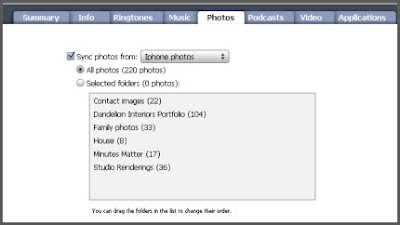


We purchased the iPhone with lots of space. Right now, I'm in the process of adding lots of photos. First, I created a folder called iPhone photos with sub-folders (see above screenshot). The Contact Images folder contains cropped headshots of my contacts. Now when a person calls me on my cell their photo appears. I even got some of my downloaded headshots from Facebook. Did I say already mention that I love this?!? Notice, I also have a Dandelion Portfolio folder so that Jerry and I have our entire portfolio with us everywhere we go. I created these folders and then gave Jerry a copy of them. Now, without any work on his part, he has the same folder. I LOVE THIS SHARING THING! In iTunes, all you do is click on the Photos tab and select the folder you want your phone to always sync with.

The iPhone also doubles as my iPod. That falls under Jerry's duties. He handles all mp3s and I handle all photos. We also added a mosquito repellent app; not sure if this works yet!
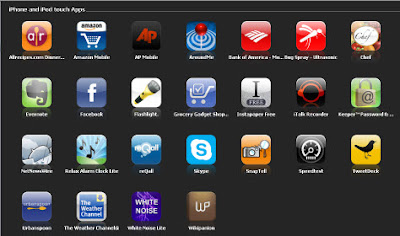


What I loved about the iPhone is all the apps that are available. I know other phones have apps but iPhone seems to have the most at this time. Of course, I added Bank of America since I had been seeing their app advertised for a while now as I have been doing my online banking.

Here is a few of our favorite apps:

http://www.chefslittlehelper.com/ is an app where you can enter your favorite family recipes. Your whole family can have access to them via this website. The website version is available and free to everyone. The iPhone app is .99 cents. What I love about this app is your recipes are always with you. Say you're at the grocery if you decide to make a dish and can't remember the ingredients, just open this app. Now that I have added several of my recipes, Jerry can purchase the app and add those same recipes to his cookbook without any work on his part. It even has a grocery list function. Special Note: all recipes are viewable to everyone; so you can add any one's recipe that is listed to your iPhone app. To find the recipes I have added click the search button then click on the Users tab and type Debbie Green. I have added my meatloaf recipe, my mom's famous spaghetti & meatballs recipe and Jerry's grandmother's sugar cookie recipe. Check them out. I will be adding my Fried Apple recipe soon! I know you guys from up North have never heard of them. They are "to-die-for."

http://www.grocerygadgets.com/ is another app Jerry and I love. This app is $4.99 and both of us had to purchase it. Jerry did the research on what we wanted in a "shopping list" type app. Our requirements were it needed to have the website version as well as the iPhone app, it had to be syncable to both of us. In other words, we wanted one list for both of us. I could add items to the list and his would automatically be updated. And sure enough this one did all that. We tried it out today and Jerry was off to the store with his iPhone in hand. As you check off an item it goes to the bottom of the list. If I add something from home, Jerry instantly gets it added to his list while he's shopping! We also created a weekly grocery list that contains all the items we purchase on a regular basis.

White Noise Lite (added this app from iTunes) Jerry and I have to have noise to sleep and especially when I travel. I can't sleep at all if it's dead quite. This app is so cool. Some of the sounds include crickets, extreme rain, grandfather clock, chimes, white noise, thunder storms, oscillating fan & more and of course you can set the time to repeat for up to 24 hours. How can anyone sleep that long?? We are using the lite version which is free!!

Around Me (added this app from iTunes) On the iPhone click on the app to view a list of banks, bars, coffee, gas stations, hospitals, hotels, restaurants, supermarkets, theaters ... there are just too many to list. Click on the desired category to view results. This app is free!

http://www.keeperapp.com/ I am always needing a password for something. I have a physical password journal on my desk, but there are many times that I need a password and I am away from my office. This is the perfect solution for me. It is totally secured with Military-Grade encryption (128-bit AES). I can even export these to share with Jerry. This app is free too!